

Total 2890 characters, estimated reading time: 8 minutes.
Introduction
This article describes how to use Linux LVM Cache to use SSDs as the cache layer of mechanical hard disks (HDDs) to achieve a storage solution that takes into account both large capacity and high performance.
What is LVM Cache?
LVM Cache is a block device caching function provided by Linux LVM(Logical Volume Manager) based on Device Mapper(dm-cache). SSD can be used as a cache for HDD and is completely transparent to file systems and applications.
Advantages:
- Improve random read and write performance
- Preserve HDD large capacity
- No need to modify the application
- Support XFS, EXT4 and other file systems
Working principle
应用程序
    │
文件系统(XFS/EXT4)
    │
Logical Volume
    │
LVM Cache
 ├── SSD Cache
 └── HDD Data
The data is fetched from the SSD first when reading; it is read from the HDD and automatically cached when the cache misses. When writing, it is determined whether to write to the SSD first according to the cache mode.
Writeback and Writethrough mode
| Mode | Read Performance | Write Performance | Security |
|---|---|---|---|
| Writeback | ★★★★★ | ★★★★★ | ★★★ |
| Writethrough | ★★★★★ | ★★★ | ★★★★★ |
Writeback
- Best performance
- Background Write-Back HDD
- SSD corruption can lead to loss of data that has not been written back
Writethrough
- Write SSD and HDD at the same time
- More secure
- Slightly lower write performance
Start Configuration
Environmental Description
Here is my hardware configuration:
- Solid State Drive (SSD):/dev/nvme1n1
- Mechanical Hard Disk (HDD):/dev/sda
Here is what I created:
- VG:disk_cache
- Cache Pool:cachepool
- LV:disk
Partitioning for SSD
Since I don't want to use the entire SSD as an acceleration disk, I use sudo fdisk /dev/nvme1n1 Partitions were made.
Eventually created the partition /dev/nvme1n1p2, used to accelerate the mechanical hard disk.
Create PV
PV(Physical Volume) is the core of LVM. It can be an entire physical hard disk, a RAID disk array, or a hard disk partition. When these physical storage devices are initialized by LVM, they are assigned metadata and converted into basic storage units for LVM calls.
In short, after PV is created, LVM can manage this hard disk or partition.
First create the PV for the SSD with the following command:
sudo pvcreate /dev/nvme1n1p2
Next, create a PV for the HDD with the same command:
sudo pvcreate /dev/sda
If the HDD has already been used, you can use the command sudo wipefs -a /dev/sda Erase.
Create VG
In LVM, VG(Volume Group) is a “centralized storage pool” formed by consolidating multiple hard disks or partitions ". A VG can be understood as a virtual large hard disk with a capacity equal to the sum of the capacities of all the physical devices that make up it.
Here we directly create a name named disk_cache VG, and will /dev/nvme1n1p2 and /dev/sda Add to this VG.
sudo vgcreate disk_cache /dev/nvme1n1p2 /dev/sda
Create LV
In LVM, LV stands for (Logical Volume, Logical Volume). It is the logical partition that LVM is finally partitioned for the system to mount and use. You can create a file system (such as ext4 or xfs) directly on it, just like you would with a traditional hard disk partition.
First, create a cache pool for the SSD with the command:
sudo lvcreate --type cache-pool -n cachepool -l 100%PVS disk_cache /dev/nvme1n1p2
This creates a good name. cachepool of the cache pool.
Then create the LV for the HDD:
sudo lvcreate -n disk -l 100%PVS disk_cache /dev/sda
At this point, the HDD has created a LV that has not been accelerated by SSD.
Enable LVM Cache
At this time, we only need to enable LVM Cache, and we can use SSD to accelerate HDD, as follows:
sudo lvconvert \
--type cache \
--cachepool disk_cache/cachepool \
--cachemode writeback \
disk_cache/disk
Format and mount
First format as an xfs file system:
sudo mkfs.xfs -f /dev/disk_cache/diskThen mount it with the following command:
sudo mkdir -p /mnt/disk
sudo mount /dev/disk_cache/disk /mnt/disk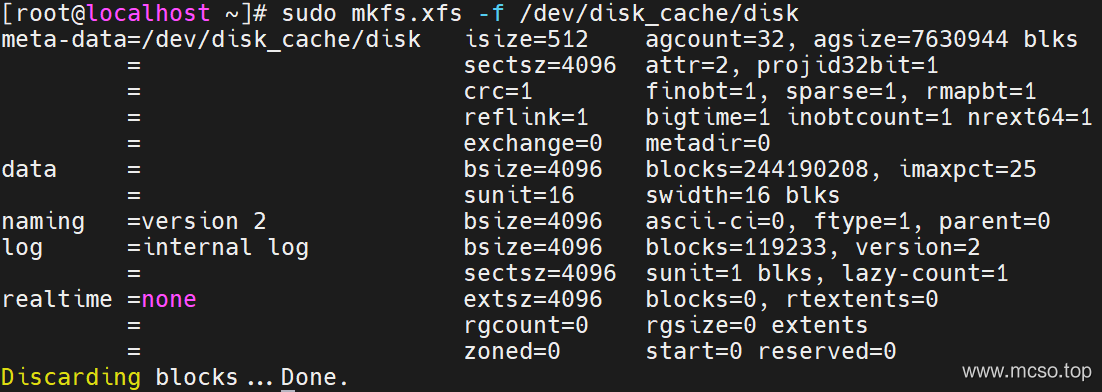
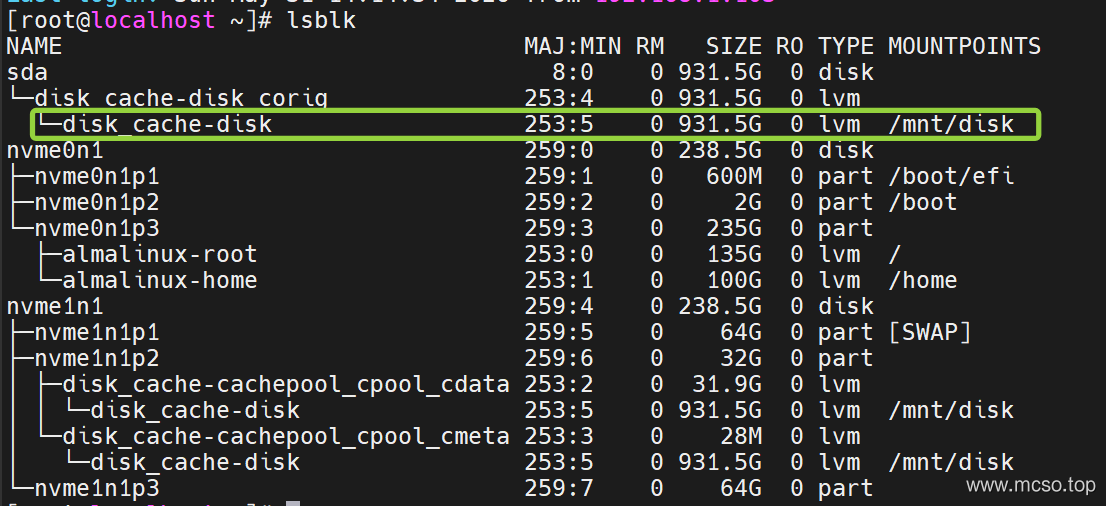
At this point, use lsblk The command can be seen:
Startup on power-on
First, you need to get the UUID information of the partition:
sudo blkid /dev/disk_cache/disk
Then use vim commands, writing /etc/fstab File:
UUID=<UUID> /mnt/disk xfs defaults 0 0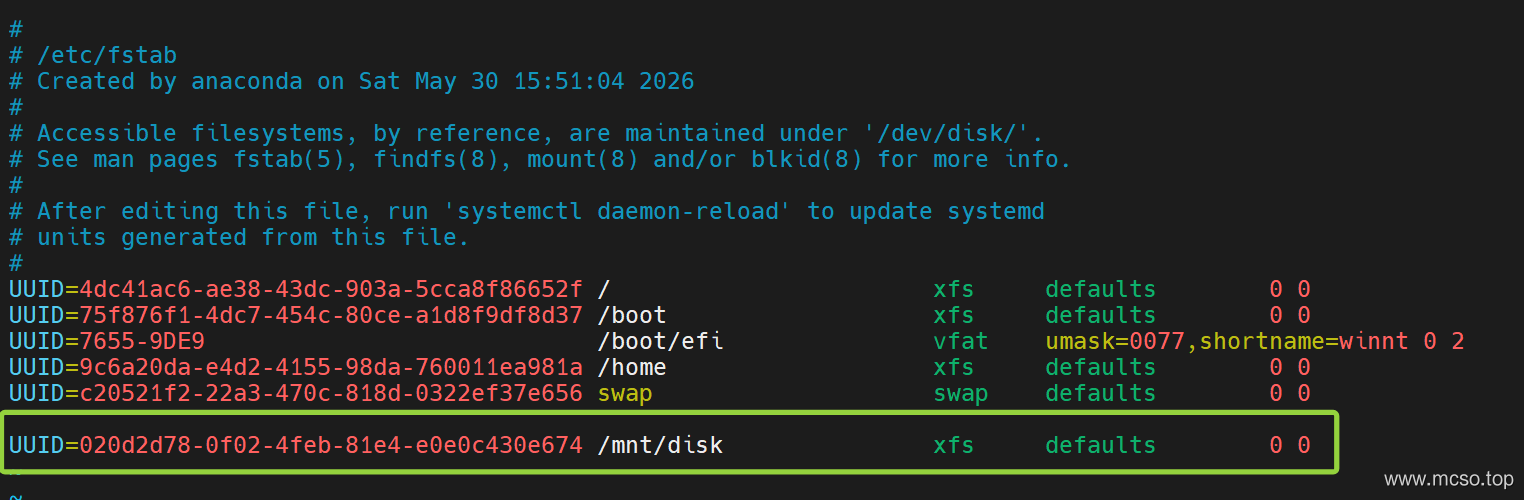
Finally, use the following command to verify whether the mount is successful:
sudo mount -aOther
Common Commands
| Function | Command |
|---|---|
| View PV | pvs |
| View VG | vgs |
| View LV | lvs |
| View Cache Mode | lvs -o +cache_mode |
| View cache usage | lvs -o +data_percent |
| View Cache Policy | lvs -o +cache_policy |
| View Device Mapper | dmsetup status |
| Detach Cache | lvconvert --splitcache VG/LV |
| Delete Cache Pool | lvremove VG/cachepool |
| View UUID | blkid |
| View block devices | lsblk |
View cache status
sudo lvs
sudo lvs -a
sudo lvs -o +cache_mode
sudo lvs -o +data_percent
sudo lvs -o +metadata_percent
sudo lvs -o +cache_policy
sudo lvs -a -o +devices
Recommendation:
sudo lvs -o lv_name,vg_name,cache_mode,data_percent,metadata_percent,devicesCache Tuning
View Device Mapper:
sudo dmsetup status
sudo dmsetup table
Switch mode:
sudo lvchange --cachemode writethrough disk_cache/disk
sudo lvchange --cachemode writeback disk_cache/disk
Delete Cache
sudo umount /mnt/disk
sudo lvconvert --splitcache disk_cache/disk
Delete the Cache Pool:
sudo lvremove disk_cache/cachepool
sudo vgreduce disk_cache /dev/nvme1n1p2
sudo pvremove /dev/nvme1n1p2
Frequently Asked Questions
Why does the cache not take effect immediately?
LVM Cache automatically establishes a cache based on access hotspots, and the hit rate increases gradually after accessing the same data multiple times.
What happens to SSD damage?
- Writeback: Possible loss of unwritten-back data.
- Writethrough: Usually no data is lost.
Recommended pairings
- Home NAS:Writeback UPS Enterprise SSD
- Important Data: Writethrough
summarize
LVM Cache is a block device-level caching solution that provides SSD-level access to hot data for mechanical hard drives without changing the application. For NAS, media server, and mass storage scenarios, the recommended Writeback UPS Enterprise SSD Get the best performance; for critical data, it is recommended to choose Writethrough mode to improve reliability.