

Total 19509 characters, estimated reading time: 49 minutes.
Tailscale Introduction
Introduction
Tailscale is a based on WireGuard A modern Virtual Local Area Network (VPN) tool for building. It can encrypt and connect your devices (servers, computers, mobile phones, etc.) distributed around the world in any network environment, allowing them to communicate directly as if they were plugged into the same switch.
In fact, it offers essentially the same functionality as WireGuard.
Compared to the advantages of WireGuard
So the question arises: why not just use WireGuard?
WireGuard supports only UDP-based transmission, but in certain public environments—such as schools and corporate networks—UDP packets are blocked, making it unusable. In contrast, Tailscale uses the WireGuard protocol for direct peer-to-peer communication when UDP is permitted, and in environments where UDP is disabled, it falls back to TCP by routing traffic through encrypted DERP relay servers, ensuring compatibility across all network conditions.
If all the scenarios you use support UDP packets, then you don’t need to use Tailscale! Instead, it’s more convenient to use WireGuard directly. For a deployment guide on WireGuard, you can check my… Previous articles.
Principle
You’re probably wondering why Tailscale, which is built on WireGuard, can still establish a virtual LAN even in networks that completely block UDP traffic.
Let’s start by examining Tailscale’s architecture. Tailscale can be divided into the following two layers:
-
Control plane: This layer is responsible for managing user behavior, establishing connections, and allocating IP addresses, among other functions. Headscale, which will be discussed shortly, also operates at this layer.
-
At the data level: only the transmission of data is considered, by DREP (Designated Encrypted Relay for Packets) Provided by the server. The DREP server can not only establish UDP-based connections between two clients, but also, when UDP is disabled, it can provide encrypted TCP connections as a relay server.
Here, I provide an example of two clients connecting to the same server to help you understand.
- Device A begins attempting to connect to Device B.
- Device A is connecting to the DERP server currently in use by Device B.
- Device A sends a connection request to Device B via the DERP server.
- Devices exchange direct connection information through the connected DERP server.
i. Device A sends a connection request.
ii. Device B replies with its connection information. - Both devices perform NAT traversal. They attempt various NAT traversal techniques to establish a direct UDP tunnel between them.
i. If NAT traversal is successful, Device A and Device B will establish a peer-to-peer connection. They do not need to relay packets through a third device, such as a DERP server or peer relay server.
ii. If devices cannot establish a direct connection, they will attempt to connect through Tailscale’s peer relay servers. To achieve this, there must be at least one peer relay device in the network, accessible to both device A and device B.
iii. If no peer relays are available, the device will maintain connectivity via a DERP server, which forwards packets between them. - It will periodically recheck whether a direct connection or a peer-to-peer relay connection can be established.
At this point, you should have a general understanding of Tailscale.
Headscale Introduction
Introduction
Headscale is an open-source alternative to Tailscale’s coordination server, enabling you to fully replicate Tailscale’s networking capabilities on servers you control, without relying on the official service.
Why do you need Headscale instead of Tailscale?
Tailscale is a commercial product, the use of this platform requires registration, login and other troublesome operations, but also may disclose privacy information. Moreover, the free version also has some restrictions, such as the inability to customize network segments, etc.
At this point, it’s time to Headscale It has appeared. Headscale is an open-source alternative to Tailscale’s control plane. It allows you to deploy the control plane required for a Tailscale network entirely on servers you control, eliminating reliance on any official services.
In fact, we may still need to rely on some official services; although we’ve fully replaced the control layer, there’s still the data layer to consider. At the data level, you can use the official DERP servers!
Deployment Tutorial
Having said all that, it’s time to start the deployment! Let’s start with Headscale, the control-plane component.
Deploy Headscale (server-side)
The official tutorial Here, basically also said 7788, but I still translated it here.
Different Linux servers have different deployment methods.
Installation on Debian, Ubuntu, or similar systems
This type of system is the simplest; we start from Headscale’s GitHub repository Download the latest installation package, then install the DEB package.
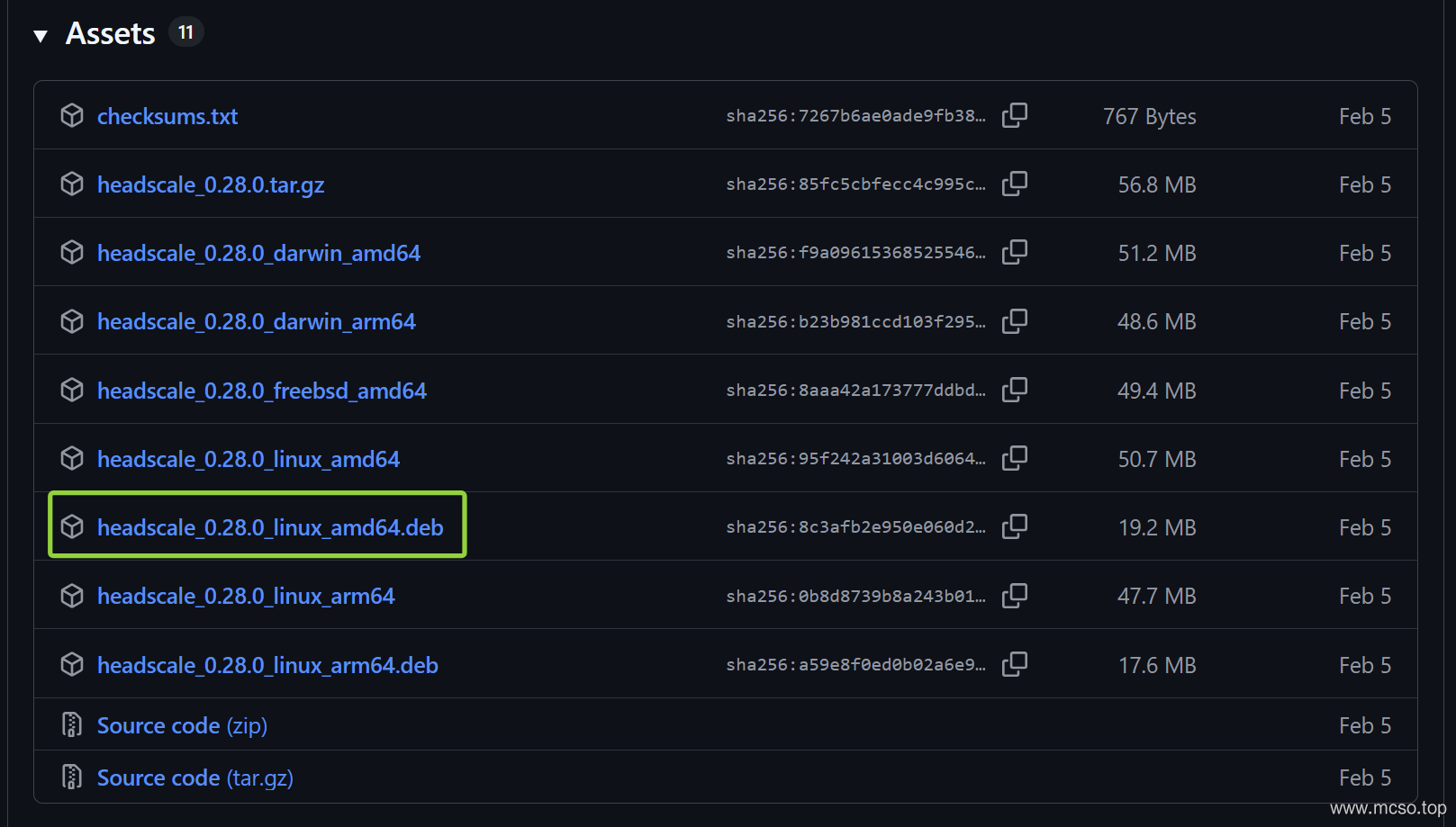
Enter the following command to install:
sudo apt install ./headscale.debAfter installation, the configuration file is located at /etc/headscale/config.yaml,You can edit it with the vim editor. Then enter:
sudo systemctl enable --now headscaleSet the program to start automatically at boot and launch it.
Installation on RHEL, CentOS, or similar systems
A third-party repository is provided here; for a detailed tutorial, please refer to… Here..
We enter the following command to add this repository to the software manager:
dnf copr enable jonathanspw/headscaleThen install directly using the following command:
yum install headscaleThat’s all, it’s very simple. After installation, the configuration file is also there. /etc/headscale/config.yaml,You can edit it with the vim editor. Finally, proceed to enter:
sudo systemctl enable --now headscaleTo start the program.
General Installation Steps for Linux Systems
All Linux systems can be installed using binary packages, but this approach is relatively cumbersome.
We start from Headscale’s GitHub repository Download the latest binary file, as shown in the figure below.
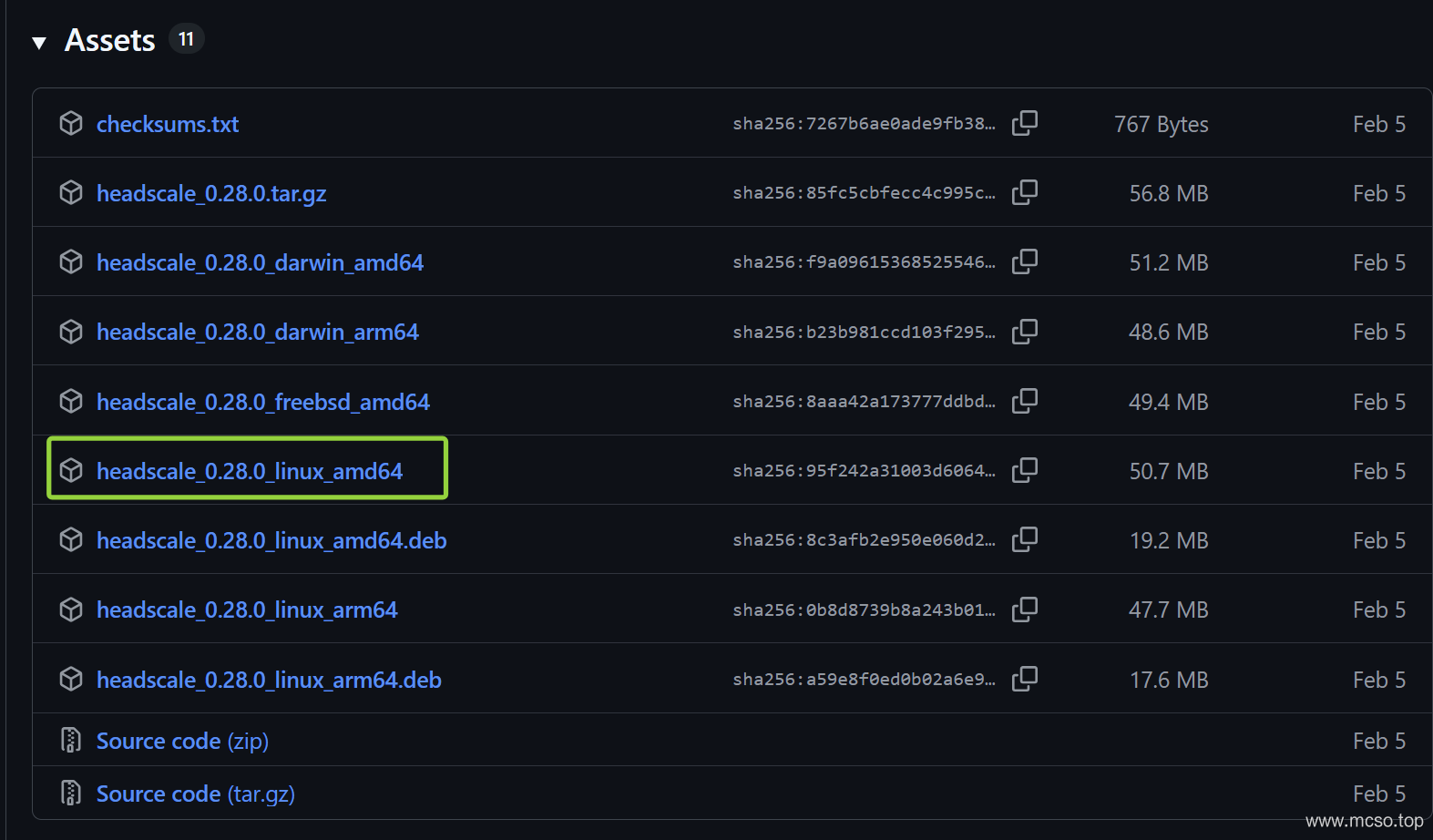
Copy this file to /usr/bin/headscale:
mv ./path/to/headscale /usr/bin/headscaleNext, add execute permissions:
sudo chmod +x /usr/bin/headscaleNext, add a dedicated user to run headscale:
sudo useradd \
 --create-home \
 --home-dir /var/lib/headscale/ \
 --system \
 --user-group \
 --shell /usr/sbin/nologin \
headscaleNext,From here Download the sample configuration file and put it in /etc/headscale/config.yaml Middle. Of course, you can also download the latest sample files directly from GitHub. Run the command:
sudo mkdir -p /etc/headscale
mv ./config-example.yaml /etc/headscale/config.yaml
Next, you can edit the configuration file. /etc/headscale/config.yaml.
Finally,From here Download the service configuration file and place it in /etc/systemd/system/headscale.service, namely:
mv ./headscale.service /etc/systemd/system/headscale.serviceNext, configure the service to start on boot and immediately start the service:
systemctl daemon-reload
systemctl enable --now headscale
And just like that, we’ve got it installed!
Configure Headscale
Configuration files are generally located in /etc/headscale/config.yaml,The following is the configuration file after being translated into Chinese:
# headscale 将按以下顺序查找名为 `config.yaml`(或 `config.json`)的配置文件:
#
# - `/etc/headscale`
# - `~/.headscale`
# - 当前工作目录

# 客户端将连接的 URL。
# 通常这会是一个域名,例如:
#
# https://myheadscale.example.com:443
#
server_url: http://127.0.0.1:8080

# 服务器监听/绑定的地址
#
# 生产环境建议:
# listen_addr: 0.0.0.0:8080
listen_addr: 127.0.0.1:8080

# /metrics 和 /debug 的监听地址,你可能希望
# 将此端点保留在内部网络中,不对外暴露。
# 使用空值可以禁用指标监听器。
metrics_listen_addr: 127.0.0.1:9090

# gRPC 的监听地址。
# gRPC 用于通过 CLI 远程控制 headscale 服务器。
# 注意:远程访问_仅_在你拥有有效证书时才有效。
#
# 生产环境建议:
# grpc_listen_addr: 0.0.0.0:50443
grpc_listen_addr: 127.0.0.1:50443

# 允许 gRPC 管理接口以不安全模式运行。
# 不推荐这样做,因为流量将不会被加密。
# 仅在你知道自己做什么的情况下启用。
grpc_allow_insecure: false

# Noise 部分包含 TS2021 Noise 协议的特定配置
noise:
  # Noise 私钥用于在使用新的基于 Noise 的协议时,
  # 加密 headscale 与 Tailscale 客户端之间的通信。
  # 如果缺少密钥,系统会自动生成。
  private_key_path: /var/lib/headscale/noise_private.key

# 用于分配 Tailscale 地址的 IP 前缀列表。
# 每个前缀由一个 IPv4 或 IPv6 地址以及用斜杠分隔的
# 前缀长度组成。它必须位于 Tailscale 客户端支持的 IP 范围内,
# 即 100.64.0.0/10 和 fd7a:115c:a1e0::/48 的子网。
# 参见下方:
# IPv6: https://github.com/tailscale/tailscale/blob/22ebb25e833264f58d7c3f534a8b166894a89536/net/tsaddr/tsaddr.go#LL81C52-L81C71
# IPv4: https://github.com/tailscale/tailscale/blob/22ebb25e833264f58d7c3f534a8b166894a89536/net/tsaddr/tsaddr.go#L33
# 不支持任何其他范围,否则会导致意外问题。
prefixes:
  v4: 100.64.0.0/10
  v6: fd7a:115c:a1e0::/48

  # 用于为节点分配 IP 的策略,可用选项:
  # - sequential(顺序,默认):从上一个给出的 IP 之后分配下一个空闲 IP。
  #   采用尽力而为的方式,Headscale 可能会在 IP 段中留下空洞或填补现有的空洞。
  # - random(随机):从伪随机 IP 生成器(crypto/rand)中分配下一个空闲 IP。
  allocation: sequential

# DERP 是 Tailscale 在无法建立直接连接时使用的中继系统。
# https://tailscale.com/blog/how-tailscale-works/#encrypted-tcp-relays-derp
#
# headscale 需要一个可以向客户端呈现的 DERP 服务器列表。
derp:
  server:
    # 如果启用,将运行嵌入式 DERP 服务器并将其合并到其余的 DERP 配置中。
    # 上面定义的 Headscale server_url 必须使用 https,DERP 需要 TLS 已配置就绪。
    enabled: false

    # 用于嵌入式 DERP 服务器的区域 ID。
    # 如果该区域 ID 与来自常规 DERP 配置的其他区域 ID 冲突,本地 DERP 将优先。
    region_id: 999

    # 区域代码和名称会显示在 Tailscale 界面中,用于标识一个 DERP 区域。
    region_code: "headscale"
    region_name: "Headscale Embedded DERP"

    # 仅允许与此服务器关联的客户端访问
    verify_clients: true

    # 在配置的地址上通过 UDP 监听 STUN 连接,以协助 NAT 穿透。
    # 当启用嵌入式 DERP 服务器时,必须定义 stun_listen_addr。
    #
    # 有关其工作方式的更多详细信息,请参阅这篇出色文章:https://tailscale.com/blog/how-tailscale-works/
    stun_listen_addr: "0.0.0.0:3478"

    # 私钥用于加密 headscale DERP 与 Tailscale 客户端之间的通信。
    # 如果缺少密钥,系统会自动生成。
    private_key_path: /var/lib/headscale/derp_server_private.key

    # 此标志可用于让嵌入式 DERP 服务器的 DERP 映射条目不被自动写入,
    # 它允许你使用本地文件通过 DERP.paths 参数创建自己的 DERP 映射条目。
    # 如果你启用 DERP 服务器并将此项设置为 false,则必须通过 DERP.paths 将该 DERP 服务器添加到 DERP 映射中。
    automatically_add_embedded_derp_region: true

    # 为了获得更好的连接稳定性(尤其是在使用出口节点且 DNS 不工作时),
    # 可以选择将公网 IPv4 和 IPv6 地址添加到 Derp-Map 中:
    ipv4: 198.51.100.1
    ipv6: 2001:db8::1

  # 外部可用的 DERP 映射列表,以 JSON 编码
  urls:
    - https://controlplane.tailscale.com/derpmap/default

  # 本地可用的 DERP 映射文件,以 YAML 编码
  #
  # 此选项主要对托管自有 DERP 服务器的人有用:
  # https://tailscale.com/kb/1118/custom-derp-servers/
  #
  # paths:
  #   - /etc/headscale/derp-example.yaml
  paths: []

  # 如果启用,将设置一个工作线程定期刷新给定的来源并更新 derpmap。
  auto_update_enabled: true

  # 我们应该多久检查一次 DERP 更新?
  update_frequency: 3h

# 禁用在启动时自动检查 headscale 更新
disable_check_updates: false

# 一个处于非活跃状态的临时节点在被删除前的存活时间
ephemeral_node_inactivity_timeout: 30m

database:
  # 数据库类型。可用选项:sqlite, postgres
  # 请注意,强烈不建议使用 Postgres,因为它仅因遗留原因而受支持。
  # 所有新的开发、测试和优化都围绕 SQLite 进行。
  type: sqlite

  # 启用调试模式。此设置需要将 log.level 设置为 "debug" 或 "trace"。
  debug: false

  # GORM 配置设置。
  gorm:
    # 启用预编译语句。
    prepare_stmt: true

    # 启用参数化查询。
    parameterized_queries: true

    # 跳过记录 "record not found" 错误的日志。
    skip_err_record_not_found: true

    # 慢查询阈值(毫秒)。
    slow_threshold: 1000

  # SQLite 配置
  sqlite:
    path: /var/lib/headscale/db.sqlite

    # 为 SQLite 启用 WAL 模式。建议在生产环境中使用。
    # https://www.sqlite.org/wal.html
    write_ahead_log: true

    # WAL 文件帧的最大数量,达到后 WAL 文件将自动执行检查点。
    # https://www.sqlite.org/c3ref/wal_autocheckpoint.html
    # 设置为 0 可禁用自动检查点。
    wal_autocheckpoint: 1000

  # # Postgres 配置
  # 请注意,强烈不建议使用 Postgres,因为它仅因遗留原因而受支持。
  # 更多信息请见 database.type。
  # postgres:
  #   # 如果使用 Unix 套接字连接 Postgres,请在 'host' 字段中设置套接字路径,并将 'port' 留空。
  #   host: localhost
  #   port: 5432
  #   name: headscale
  #   user: foo
  #   pass: bar
  #   max_open_conns: 10
  #   max_idle_conns: 10
  #   conn_max_idle_time_secs: 3600
  #
  #   # 如果需要 'require(true)' 和 'disabled(false)' 以外的 'sslmode',请在 'ssl' 字段中设置你所需的 'sslmode'。
  #   # 参考 https://www.postgresql.org/docs/current/libpq-ssl.html 表 34.1。
  #   ssl: false

### TLS 配置
#
## Let's Encrypt / ACME
#
# headscale 支持通过 Let's Encrypt 自动为域名申请和设置 TLS。
#
# ACME 目录 URL
acme_url: https://acme-v02.api.letsencrypt.org/directory

# 向 ACME 提供商注册的电子邮件地址
acme_email: ""

# 要为其申请 TLS 证书的域名:
tls_letsencrypt_hostname: ""

# 存储 Let's Encrypt 所需的证书和元数据的路径
# 生产环境建议:
tls_letsencrypt_cache_dir: /var/lib/headscale/cache

# 要使用的 ACME 验证类型,当前支持的类型:
# HTTP-01 或 TLS-ALPN-01
# 更多信息参见:docs/ref/tls.md
tls_letsencrypt_challenge_type: HTTP-01
# 当选择 HTTP-01 验证时,Let's Encrypt 必须建立一个验证端点,它将监听在:
# :http = 端口 80
tls_letsencrypt_listen: ":http"

## 使用已准备好的证书:
tls_cert_path: ""
tls_key_path: ""

log:
  # 有效的日志级别:panic、fatal、error、warn、info、debug、trace
  level: info

  # 日志的输出格式:text 或 json
  format: text

## 策略
# headscale 支持 Tailscale 的 ACL 策略。
# 请参阅他们的知识库以更好理解相关概念:https://tailscale.com/kb/1018/acls/
policy:
  # 模式可以是 "file" 或 "database",用于定义 ACL 策略的存储和读取位置。
  mode: file
  # 如果模式设置为 "file",则为包含 ACL 策略的 HuJSON 文件路径。
  path: ""

## DNS
#
# headscale 支持 Tailscale 的 DNS 配置和 MagicDNS。
# 请参阅他们的知识库以更好理解相关概念:
#
# - https://tailscale.com/kb/1054/dns/
# - https://tailscale.com/kb/1081/magicdns/
# - https://tailscale.com/blog/2021-09-private-dns-with-magicdns/
#
# 请注意,要使 DNS 配置生效,客户端必须启用 `--accept-dns=true` 选项。
# 这是 Tailscale 客户端的默认设置。此选项在 Tailscale 客户端中默认启用。
#
# 设置 _任何_ 配置并在客户端上使用 `--accept-dns=true` 将与客户端的 DNS 管理器集成,
# 或覆盖 /etc/resolv.conf。
# https://tailscale.com/kb/1235/resolv-conf
#
# 如果你希望阻止 Headscale 管理 DNS 配置,
# 应将 `dns` 下的所有字段设置为空值。
dns:
  # 是否使用 [MagicDNS](https://tailscale.com/kb/1081/magicdns/)。
  magic_dns: true

  # 定义用于生成 MagicDNS 主机名的基域名。
  # 此域名_必须_与 server_url 域名不同。
  # `base_domain` 必须是一个完全限定域名(FQDN),末尾不带点。
  # 主机的 FQDN 将是 `hostname.base_domain`(例如,_myhost.example.com_)。
  base_domain: example.com

  # 是否使用节点的本地 DNS 设置,或者覆盖本地 DNS 设置(默认)并强制使用 Headscale 的 DNS 配置。
  override_local_dns: true

  # 要暴露给客户端的 DNS 服务器列表。
  nameservers:
    global:
      - 1.1.1.1
      - 1.0.0.1
      - 2606:4700:4700::1111
      - 2606:4700:4700::1001

      # NextDNS(参见 https://tailscale.com/kb/1218/nextdns/)。
      # "abc123" 是示例 NextDNS ID,请替换为你自己的。
      # - https://dns.nextdns.io/abc123

    # 拆分 DNS(参见 https://tailscale.com/kb/1054/dns/),
    # 一个域名到其应使用的 DNS 服务器的映射。
    split: {}
      # foo.bar.com:
      #   - 1.1.1.1
      # darp.headscale.net:
      #   - 1.1.1.1
      #   - 8.8.8.8

  # 设置自定义 DNS 搜索域。启用 MagicDNS 后,
  # 你的 tailnet base_domain 始终是第一个搜索域。
  search_domains: []

  # 额外的 DNS 记录
  # 目前仅支持 A 和 AAAA 记录(在 tailscale 侧)
  # 参见:docs/ref/dns.md
  extra_records: []
  #   - name: "grafana.myvpn.example.com"
  #     type: "A"
  #     value: "100.64.0.3"
  #
  #   # 你也可以将其放在一行
  #   - { name: "prometheus.myvpn.example.com", type: "A", value: "100.64.0.3" }
  #
  # 或者,额外的 DNS 记录可以从一个 JSON 文件加载。
  # Headscale 会在每次文件变更时处理该文件。
  # extra_records_path: /var/lib/headscale/extra-records.json

# 用于 CLI 无需认证即可连接的 Unix 套接字
# 注意:对于生产环境,你通常希望将其设置为类似:
unix_socket: /var/run/headscale/headscale.sock
unix_socket_permission: "0770"

# OpenID Connect
# oidc:
#   # 在身份提供者可用且健康之前阻止启动。
#   only_start_if_oidc_is_available: true
#
#   # 来自身份提供者的 OpenID Connect 颁发者 URL
#   issuer: "https://your-oidc.issuer.com/path"
#
#   # 来自身份提供者的客户端 ID
#   client_id: "your-oidc-client-id"
#
#   # 来自身份提供者生成的客户端密钥
#   # 注意:client_secret 和 client_secret_path 是互斥的。
#   client_secret: "your-oidc-client-secret"
#   # 或者,设置 `client_secret_path` 以从文件读取密钥。
#   # 它会解析环境变量,从而可以方便地集成 systemd 的 `LoadCredential`:
#   client_secret_path: "${CREDENTIALS_DIRECTORY}/oidc_client_secret"
#
#   # 一个节点通过 OpenID 认证后到过期并需要重新认证的时间。
#   # 将值设为 "0" 表示永不过期。
#   expiry: 180d
#
#   # 使用从用户登录时 OpenID 收到的令牌中的过期时间。
#   # 这通常会导致需要频繁重新认证,除非你知道自己在做什么,否则应仅启用此项。
#   # 注意:启用该项将使 `oidc.expiry` 被忽略。
#   use_expiry_from_token: false
#
#   # 要使用的 OIDC 作用域,默认为 "openid"、"profile" 和 "email"。
#   # 可以按需配置自定义作用域,但请始终包含必需的 "openid" 作用域。
#   scope: ["openid", "profile", "email"]
#
#   # 默认情况下,只有已验证的电子邮件地址才会同步到用户配置文件。
#   # 如果身份提供者不发送 "email_verified: true" 声明或不需要电子邮件验证,
#   # 可以允许未经验证的电子邮件。
#   email_verified_required: true
#
#   # 提供自定义的键/值对,这些键值对会被发送到身份提供者的授权端点。
#   extra_params:
#     domain_hint: example.com
#
#   # 仅接受电子邮件域名属于 allowed_domains 列表的用户。
#   allowed_domains:
#     - example.com
#
#   # 仅接受电子邮件地址属于 allowed_users 列表的用户。
#   allowed_users:
#     - alice@example.com
#
#   # 仅接受属于 allowed_groups 列表中至少一个组成员的用户。
#   allowed_groups:
#     - /headscale
#
#   # 可选:PKCE(授权代码交换证明密钥)配置
#   # PKCE 通过防止授权代码拦截攻击,为 OAuth 2.0 授权码流程增加了一层额外的安全性。
#   # 参见 https://datatracker.ietf.org/doc/html/rfc7636
#   pkce:
#     # 启用或禁用 PKCE 支持(默认:false)
#     enabled: false
#
#     # 要使用的 PKCE 方法:
#     # - plain:使用明文代码验证器
#     # - S256:使用 SHA256 哈希代码验证器(默认,推荐)
#     method: S256

# Logtail 配置
# Logtail 是 Tailscale 的日志记录和审计基础设施,它允许控制面板指示 Tailscale 节点将其活动记录到远程服务器。
# 要在客户端禁用日志记录,请参考:
# https://tailscale.com/kb/1011/log-mesh-traffic#opting-out-of-client-logging
logtail:
  # 为此 Headscale 实例的 Tailscale 节点启用 Logtail。
  # 由于 Headscale 目前不支持覆盖日志服务器,因此默认禁用。
  # 启用此项将使你的客户端将日志发送到 Tailscale Inc.。
  enabled: false

# 启用此选项后,设备会优先使用随机端口进行 WireGuard 流量,而不是默认的静态端口 41641。
# 此选项旨在为一些有问题的防火墙设备提供解决方法。更多信息见 https://tailscale.com/kb/1181/firewalls/。
randomize_client_port: false

# Taildrop 配置
# Taildrop 是 Tailscale 的文件共享功能,允许节点之间相互发送文件。
# https://tailscale.com/kb/1106/taildrop/
taildrop:
  # 为所有节点启用或禁用 Taildrop。
  # 启用后,节点可以向同一用户拥有的其他节点发送文件。
  # Tailscale 客户端不允许标记设备和跨用户传输。
  enabled: true

# 高级性能调优参数。
# 默认值经过精心选择,通常很少需要调整。
# 仅在您已识别出特定的性能问题时才修改这些参数。
#
# tuning:
#   # NodeStore 写入批处理配置。
#   # NodeStore 会在重建对等关系(计算开销较高)之前对写入操作进行批处理。
#   # 批处理可减少重建频率。
#   #
#   # node_store_batch_size: 100
#   # node_store_batch_timeout: 500ms
My head is spinning just looking at such a long configuration file; here are a few of the more common modifications.
listen_addr
This is the listening address for the control platform; it is typically set to:
listen_addr: 0.0.0.0:8080Among them 0.0.0.0 The representative allows access from all addresses.8080 The port used for the representative’s access. At this time, as long as the external network accesses http://你的外网IP:8080 You can then log in to the control platform.
server_url
This setting primarily configures the access address of the control platform and can be used in conjunction with… listen_addr When in use, it is typically set to a domain name using the HTTPS protocol. For example:
server_url: https://www.example.netHere, it is recommended to use Nginx as a reverse proxy for the aforementioned. listen_addr Configure the address and install an SSL certificate, so that the reverse proxy serves the website over HTTPS.
derp
This section contains all parameters for the DERP server configuration. As shown below:
# DERP 是 Tailscale 在无法建立直接连接时使用的中继系统。
# https://tailscale.com/blog/how-tailscale-works/#encrypted-tcp-relays-derp
#
# headscale 需要一个可以向客户端呈现的 DERP 服务器列表。
derp:
  server:
    # 如果启用,将运行嵌入式 DERP 服务器并将其合并到其余的 DERP 配置中。
    # 上面定义的 Headscale server_url 必须使用 https,DERP 需要 TLS 已配置就绪。
    enabled: false

    # 用于嵌入式 DERP 服务器的区域 ID。
    # 如果该区域 ID 与来自常规 DERP 配置的其他区域 ID 冲突,本地 DERP 将优先。
    region_id: 999

    # 区域代码和名称会显示在 Tailscale 界面中,用于标识一个 DERP 区域。
    region_code: "headscale"
    region_name: "Headscale Embedded DERP"

    # 仅允许与此服务器关联的客户端访问
    verify_clients: true

    # 在配置的地址上通过 UDP 监听 STUN 连接,以协助 NAT 穿透。
    # 当启用嵌入式 DERP 服务器时,必须定义 stun_listen_addr。
    #
    # 有关其工作方式的更多详细信息,请参阅这篇出色文章:https://tailscale.com/blog/how-tailscale-works/
    stun_listen_addr: "0.0.0.0:3478"

    # 私钥用于加密 headscale DERP 与 Tailscale 客户端之间的通信。
    # 如果缺少密钥,系统会自动生成。
    private_key_path: /var/lib/headscale/derp_server_private.key

    # 此标志可用于让嵌入式 DERP 服务器的 DERP 映射条目不被自动写入,
    # 它允许你使用本地文件通过 DERP.paths 参数创建自己的 DERP 映射条目。
    # 如果你启用 DERP 服务器并将此项设置为 false,则必须通过 DERP.paths 将该 DERP 服务器添加到 DERP 映射中。
    automatically_add_embedded_derp_region: true

    # 为了获得更好的连接稳定性(尤其是在使用出口节点且 DNS 不工作时),
    # 可以选择将公网 IPv4 和 IPv6 地址添加到 Derp-Map 中:
    ipv4: 198.51.100.1
    ipv6: 2001:db8::1

  # 外部可用的 DERP 映射列表,以 JSON 编码
  urls:
    - https://controlplane.tailscale.com/derpmap/default

  # 本地可用的 DERP 映射文件,以 YAML 编码
  #
  # 此选项主要对托管自有 DERP 服务器的人有用:
  # https://tailscale.com/kb/1118/custom-derp-servers/
  #
  # paths:
  #   - /etc/headscale/derp-example.yaml
  paths: []

  # 如果启用,将设置一个工作线程定期刷新给定的来源并更新 derpmap。
  auto_update_enabled: true

  # 我们应该多久检查一次 DERP 更新?
  update_frequency: 3h
If you want to set up your own DERP server, then enable Set true。 Next, further modifications are also required. server down/under ipv4 and ipv6 The IP address of your own server.
randomize_client_port
The client uses a random port, typically configured as true Prevent being filtered.
Use it after configuring. systemctl restart headscale.serviceRestarting Headscale will get it working properly.
Deployment interface (optional)
Headscale the default is no interface, pure command line operation, but this will be very troublesome. So, I found a web interface designed for Headscale, called Headscale Admin.Open here.
You can install it directly using Docker:
docker run -p 8000:80 goodieshq/headscale-admin:latestand then visit http://xxx:8000 It can be opened now.
Next, obtain the key using the following command:
headscale api createJust paste it back into the webpage.
Deploy Tailscale (Client)
The client can Download from here , download the corresponding platform. Tutorial You can look here.,Of course, I will also introduce it below,
Windows Client Installation
Simply download the EXE file and run the installer.
Then use the following command to log in:
tailscale login --login-server <YOUR_HEADSCALE_URL>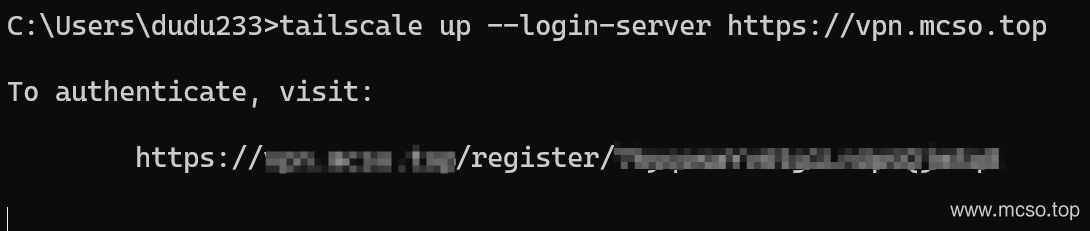
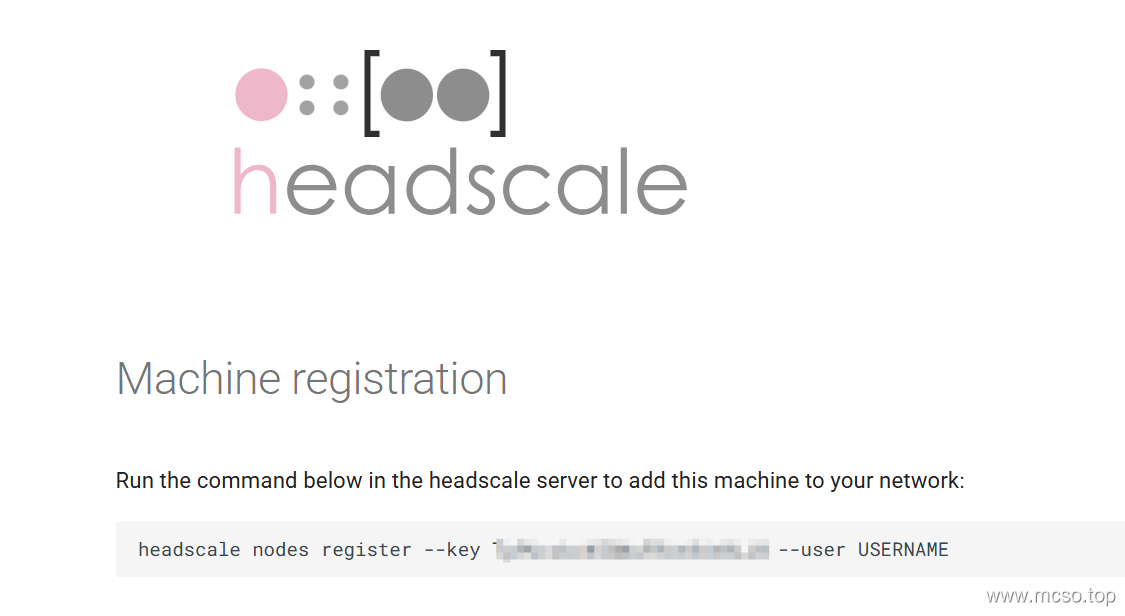
Next, follow the prompts and click on this URL to complete the verification.
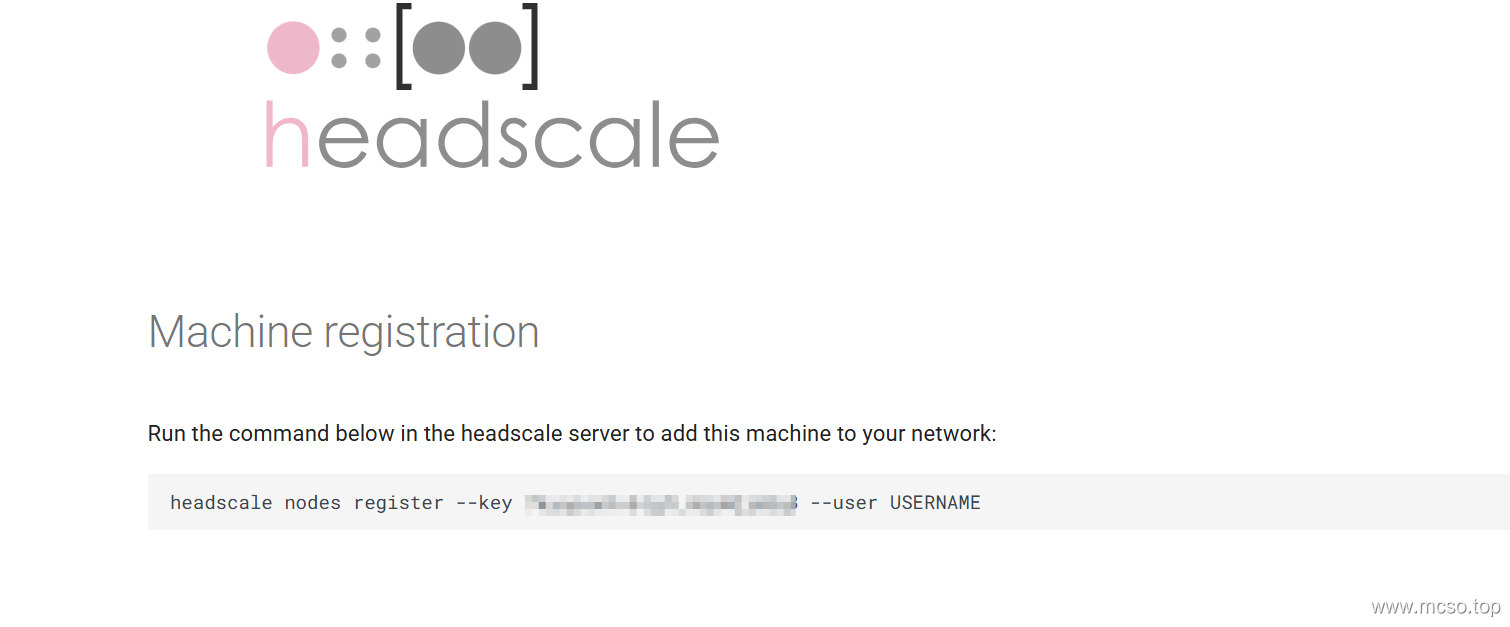
Copy the following content to the server and enter it. This command means, USERNAME This user creates a node. Note that the user name USERNAME Replace with your user.
If you don't know what a user is, don't worry, enter the following command on the server:
headscale users create defaultYou can create a name. default of the user, and then replace USERNAME You can.
Linux Client Installation
Enter the following command directly:
curl -fsSL https://tailscale.com/install.sh | shSimply install it.
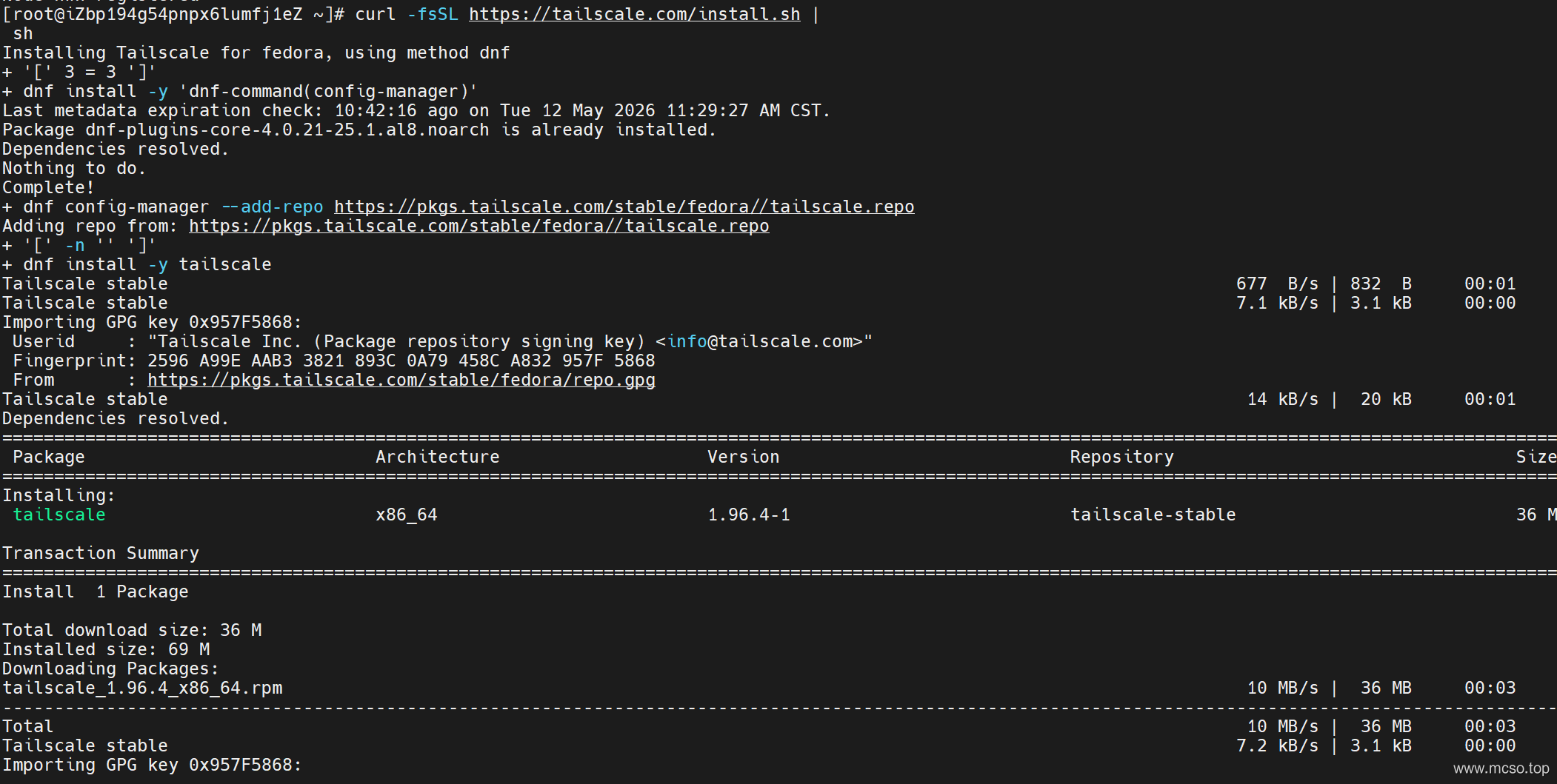
Then use the same command to log in:
tailscale login --login-server <YOUR_HEADSCALE_URL>Then simply proceed with the authentication as well.
By the way, enable auto-start at boot:
systemctl enable tailscaledAndroid Client Installation
Come here You can download the Android installation package and install it after downloading.
After opening, click on the user's avatar in the upper right corner, and then click Accounts, click the three dots in the upper right corner, and choose Use an alternate server. Finally, enter your server URL and click Login.
The rest is the same as other clients, so I won't repeat it.
Run without root or administrator privileges
In some cases (such as a lab server), you may only have a normal user account and no administrator rights, but you can actually run the TailScale at this time.
First, start from This website Download the compiled binary runtime. What system do you choose? It's better to download the latest version.
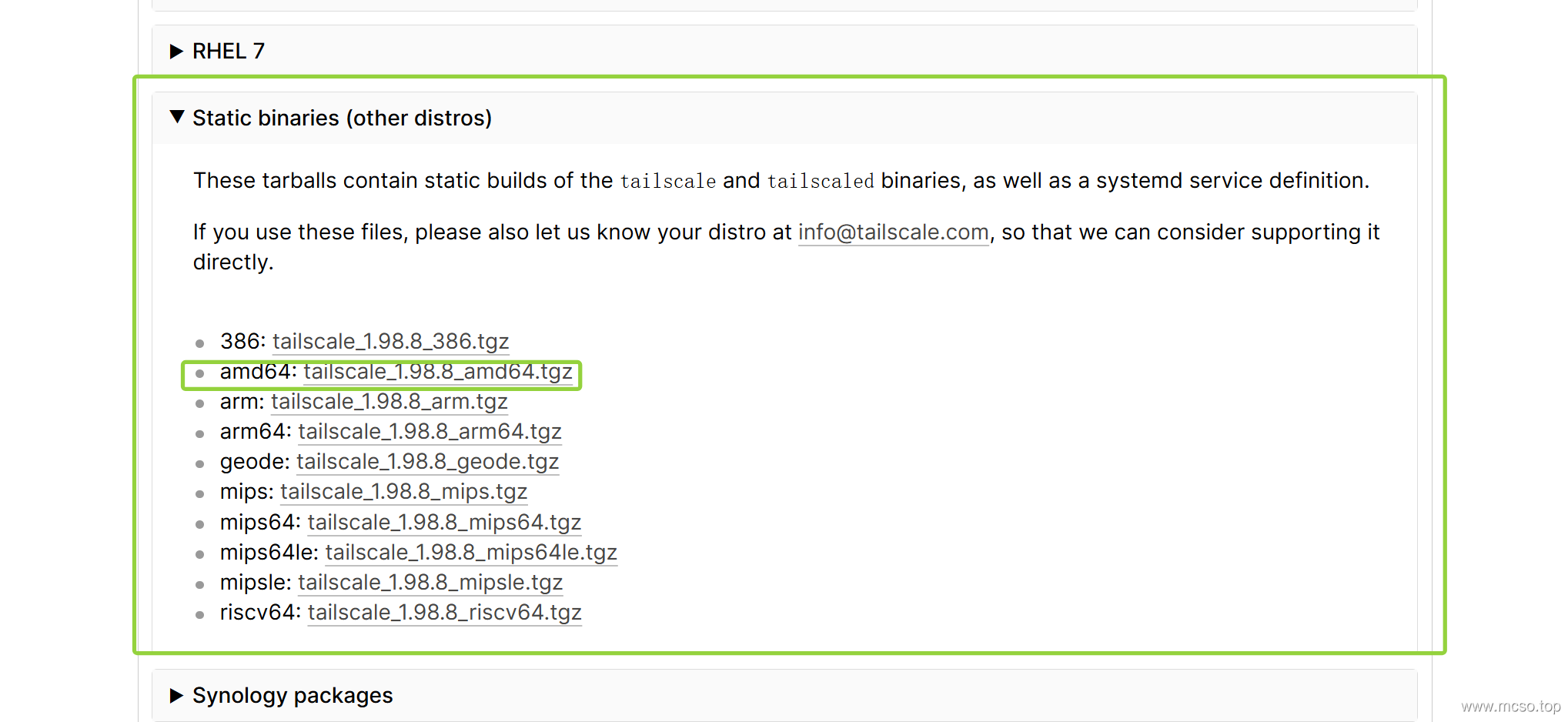
Here I take Linux system as an example, find Linux - Static binaries (other distros) - tailscale_1.98.8_amd64.tgz, click Download.
Then upload to the server, decompress tar -zxvf tailscale_1.98.8_amd64.tgz, move .tailscale Under the folder mv tailscale_1.98.8_amd64 .tailscale.
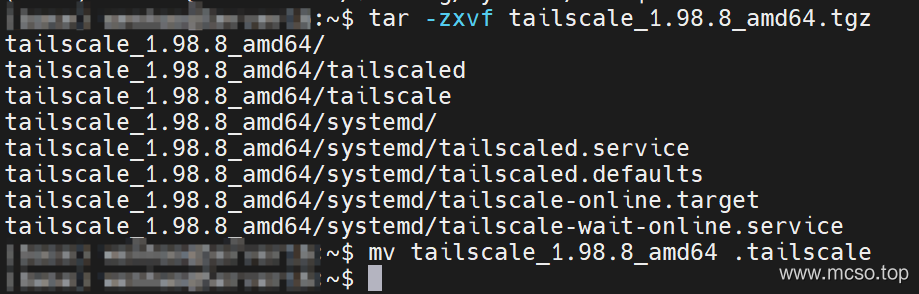
At this time, we can directly start the TailScale binary program! But our goal is to let him hang in the background, similar to what the administrator installed. At this time, we have to use systemctl ordered.
systemctl Commands are generally only available to administrators, but this command has user mode and we can run systemctl --user to execute user mode. And .service Service script, placed in the user directory .config/systemd/user Below.
Therefore, we first use the command mkdir -p ~/.config/systemd/user to create this folder. In the folder just decompressed systemd The folder contains the service script, just put it in the corresponding directory, the command is. cp ~/.tailscale/systemd/* ~/.config/systemd/user/.
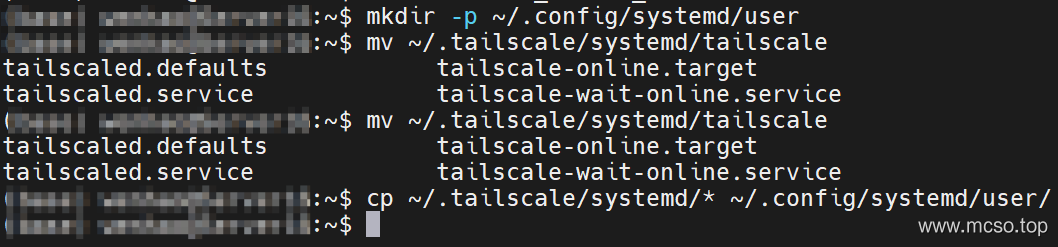
Then, you need to reload, with the command systemctl --user daemon-reload.
We also need to modify tailscaled.service File, let it point to the corresponding binary file just decompressed, here I am ~/.tailscale/tailscaled. The following is the revised content:
[Unit]
[Unit]
Description=Tailscale node agent
Documentation=https://tailscale.com/docs/
Wants=network-pre.target
After=network-pre.target NetworkManager.service systemd-resolved.service

[Service]
# 1. 注释掉环境变量
# EnvironmentFile=/etc/default/tailscaled
# 2. 修改程序运行时运行路径、状态存储路径和套接字路径到当前用户家目录(%h 代表家目录)
# ExecStart=/usr/sbin/tailscaled --state=/var/lib/tailscale/tailscaled.state --socket=/run/tailscale/tailscaled.sock --port=${PORT} $FLAGS
ExecStart=%h/.tailscale/tailscaled --tun=userspace-networking --state=%h/.local/share/tailscale/tailscaled.state --socket=%h/.local/run/tailscale/tailscaled.sock --port=41641
# 3. 修改程序结束时运行路径(%h 代表家目录)
# ExecStopPost=/usr/sbin/tailscaled --cleanup
ExecStopPost=%h/.tailscale/tailscaled --tun=userspace-networking --cleanup

Restart=on-failure

RuntimeDirectory=tailscale
RuntimeDirectoryMode=0755
StateDirectory=tailscale
StateDirectoryMode=0700
CacheDirectory=tailscale
CacheDirectoryMode=0750
Type=notify

[Install]
WantedBy=multi-user.target
tailscale-wait-online.service Documents also need to be modified together:
[Unit]
Description=Wait for Tailscale to be online
After=tailscaled.service
Requires=tailscaled.service

[Service]
Type=oneshot
# 1. 修改程序运行时运行路径(%h 代表家目录)
ExecStart=%h/.tailscale/tailscale wait
RemainAfterExit=yes

[Install]
WantedBy=tailscale-online.target
Reload the configuration at this time systemctl --user daemon-reloadand then start the service systemctl --user enable --now tailscaled.service.

At this time, the service has been running normally! Finally, add the binary file. PATH That is, in .profile Write in file export PATH="$PATH:~/.tailscale" That’ll do!
Now you just need to log in to the TailScale as before!
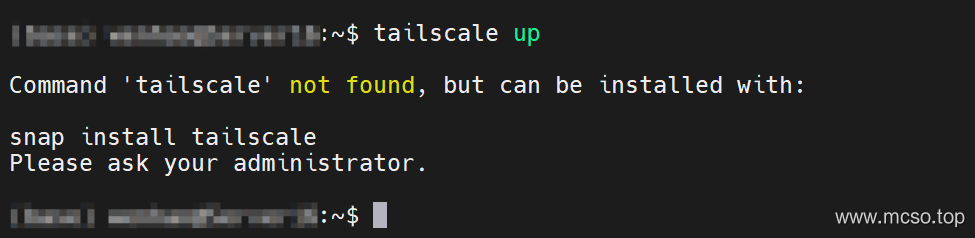
Note that the login command should be changed to the following:
tailscale --socket=~/.local/run/tailscale/tailscaled.sock login --login-server URLExtra Skills
Let the root user execute the following command to enable ordinary users to boot the program, which allows you to run the service in the background without logging in:
sudo loginctl enable-linger $USERMaintenance and some tips
Update HeadScale and TailScale
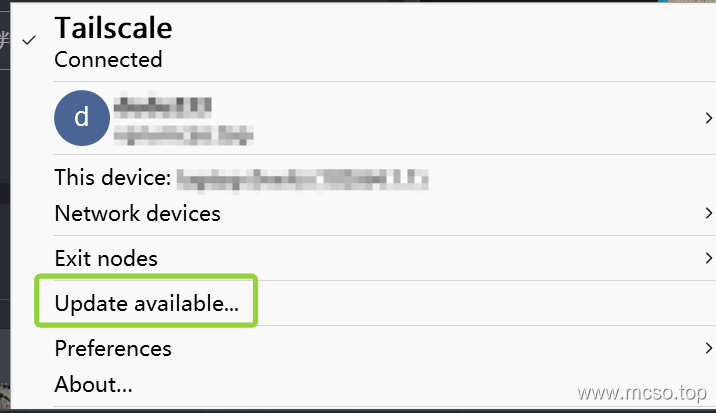
The update of the Tailscale client is very simple, just right-click the update.
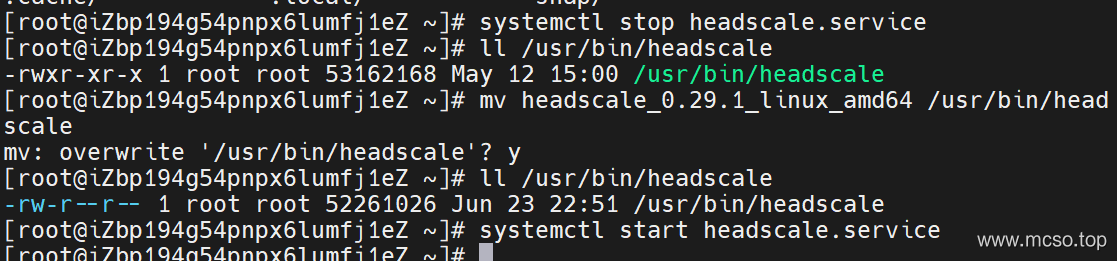
The HeadScale server update is also relatively easy. If it is installed using binary files (that is, the common installation steps for Linux systems), please follow the following steps:
-
从 GitHub Release page to download the latest files.
-
To stop the HeadScale server, use the command
systemctl stop headscale.service. -
Back up all HeadScale files for easy subsequent recovery.
-
Replace the latest file with the original file and use the command
mv headscale_0.29.2_linux_amd64 /usr/bin/headscale && chmod +x /usr/bin/headscale. -
Download the latest configuration file and compare and
/etc/headscale/config.yamlWhat is the difference between the configuration files of, if there are different places please modify. -
Restart the HeadScale with the command
systemctl start headscale.service.
Other such as software source installation, can be directly updated.
External DERP Server
The Headscale has a DERP server built in by default. To turn on the built-in server, you only need derp: server: enabled: true Set true You can.
However, if we want to use an external DERP server (DERP server provided by official default), you need to follow the steps below:
-
Install on the server where you need to install the DERP service golang, by command
sudo apt install golangorsudo yum install golang. By the way, also… Git Also installed,sudo yum install git. -
Install the official DERP server through golang and execute the command
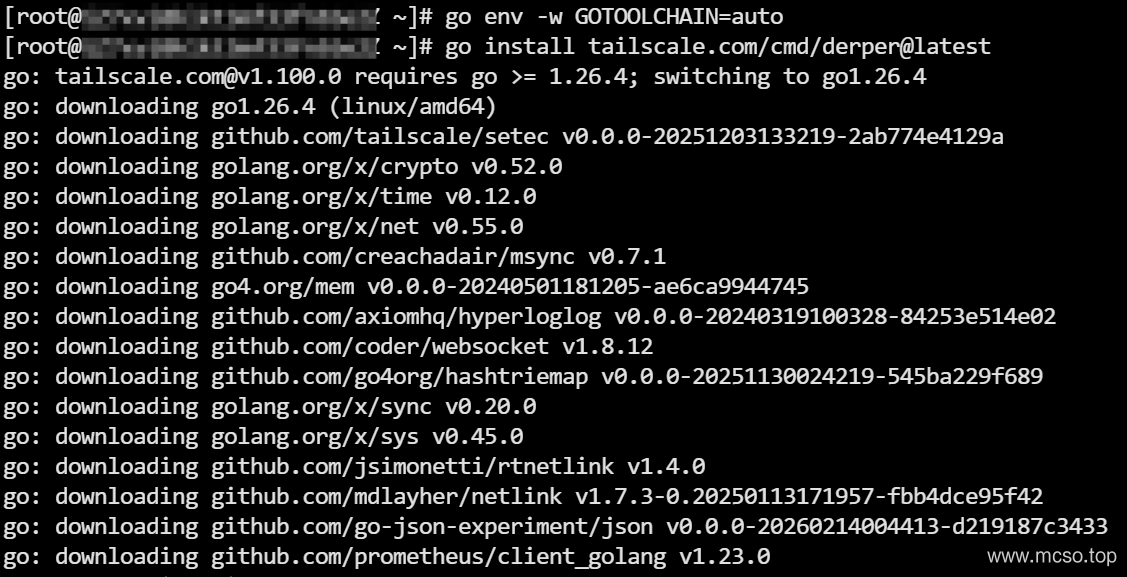
go install tailscale.com/cmd/derper@latest.golang can change the software source to accelerate the download. The command is
go env -w GOPROXY=https://goproxy.cn,direct.If you are prompted that the golang version is too low, as shown in the following figure:

Can execute commands
go env -w GOTOOLCHAIN=autoYou can let it automatically download the latest version. -
After installation, the executable file is installed
$HOME/go/bin/derperExecute as follows:Next, execute the following command to run the DERP server:
$HOME/go/bin/derper \
--hostname=derp.example.com(你的域名) \
--verify-client-url=https://headscale.example.com/verify(HeadScale的验证网址) \
--verify-client-url-fail-open=false
will be able to open the DERP server! And the domain name will automatically apply for https certificate, as long as the startup is guaranteed or the service is kept running.
If your server is not accessible Let's Encrypt You can apply for the certificate interface of your own and use the following command instead:
$HOME/go/bin/derper \
--hostname=derp.example.com(你的域名) \
--verify-client-url=https://headscale.example.com/verify(HeadScale的验证网址) \
--verify-client-url-fail-open=false \
--certmode=manual \
--certdir=/root/certs(你的证书目录)
Please be ready to put in your certificate directory.
你的域名.crtand你的域名.keyfile.If you need to start up or run automatically, create a new service.
sudo vim /etc/systemd/system/derper.service, write the following:[Unit] Description=Tailscale DERP Server After=network-online.target Wants=network-online.target [Service] Type=simple User=root Group=root ExecStart=/root/go/bin/derper \ --hostname=derp.example.com(你的域名) \ --verify-client-url=https://headscale.example.com/verify(HeadScale的验证网址) \ --verify-client-url-fail-open=false Restart=always RestartSec=5 LimitNOFILE=1048576 [Install] WantedBy=multi-user.targetThen enable it and execute the command
sudo systemctl --now enable derper.service. -
Next, you need to configure the HeadScale server, first allowing external DERP servers, as follows:
derp:
paths:
  - /etc/headscale/derp.yaml
and
/etc/headscale/derp.yamlFile to write your node information:regions: 901: regionid: 901 regioncode: "cn-hz" regionname: "Hangzhou, China" nodes: - name: hz-1 regionid: 901 hostname: derp.example.com ipv4: xxx ipv6: xxx canport80: true- Finally, restart all services.


About Users and Tags
The basic unit of Tailscale or Headscale is node (Node), node can be the user's computer, mobile phone, can also be a server and other equipment.
The node must belong to a user (User) or tag (Tag), indicating that a user has multiple devices or a device belongs to a tag. Note that when the device belongs to a tag, it cannot be owned by any user, because it already belongs to a special user tagged-devices.
Typically, we assign all end-node devices, such as laptops, workstations, or mobile phones, to a single user. For some service nodes, such as web servers and database servers, a label is assigned for management.
node management
Node management commands are usually headscale nodes At the beginning, the following are some common commands for node management.
-
List all nodes
headscale nodes listOrder. -
Create a new one with the web login method. user node.
First run on the client side
tailscale up --login-server <HeadScale网址>Order.At this time, a page will pop up and we will open it.
According to the web prompt, use the command on the server side.
headscale nodes register --user <用户> --key <注册密钥>Register. -
Create a new one using the method of the pre-authentication key. user node.
First run on the server side
headscale preauthkeys create --user <用户>Create a new node for the user and return the key.Then log in at the client
tailscale up --login-server <HeadScale网址> --authkey <注册密钥>You can log in. -
Create a new one with the web login method. Label node.
First run on the client side
tailscale up --login-server <HeadScale网址> --advertise-tags tag:<标签名>Order.At this time, a page will pop up and we will open it.
According to the web prompt, use the command on the server side.
headscale nodes register --user <用户> --key <注册密钥>Register.Note that the user must have permission to create the label. Configure the following permissions in the ACL rule file:
{ "tagOwners": { "tag:server": ["dudu233@"] }, // 其他规则 } -
Create a new one using the method of the pre-authentication key. Label node.
First run on the server side
headscale preauthkeys create --tags tag:<标签>Returns the key for creating a new node under the label.Then log in at the client
tailscale up --login-server <HeadScale网址> --authkey <注册密钥>You can log in.



Modify database
The database is located in /var/lib/headscale/db.sqlite, directly use SQLite's modifier to modify it.